My blog has moved!

You should automatically be redirected in 6 seconds. If not, visit
http://blogs.i2m.dk/allan
and update your bookmarks.

Showing posts with label JSF. Show all posts

Monday, 16 March 2009

Sending files through action listeners

For this weeks JSF tip, I’ll show you how to send binary data (such as a file) to the user by way of an action handler or listener.

Say, you want to generate a custom PDF and send it to the user as he clicks a link. You need a JSF page, and a backing bean.

Your JSF page may look like this:


<h:form>
<h:commandLink id="lnkDownload"
actionListener="#{myBean.onDownload}"
target="_blank"
value="Download PDF" />
</h:form>


Your JSF backing bean may look like this:

public MyBean {

public void onDownload(ActionEvent event) {
try {
// here you need to get the byte[] representation of
// the file you want to send
byte[] binary_data = ;
String filename = "generated_file.pdf”;
FacesContext fctx = FacesContext.getCurrentInstance();
ExternalContext ectx = fctx.getExternalContext();

HttpServletResponse response = (HttpServletResponse) ectx.getResponse();
response.setHeader("Content-Disposition", "attachment; filename=\"" + filename + "\"");
response.setHeader("Content-Transfer-Encoding", "Binary");
response.setHeader("Pragma", "private");
response.setHeader("cache-control", "private, must-revalidate");

ServletOutputStream outs = response.getOutputStream();
outs.write(binary_data);
outs.flush();
outs.close();
response.flushBuffer();

fctx.responseComplete();
} catch (IOException ex) {
ex.printStackTrace();
}
}


That’s it for today.

P.S. alternatively you can use this component which is less code intensive: http://kenai.com/projects/scales/pages/Download

Monday, 9 March 2009

JSF and I18N

It has been a busy year so far. Every year I start out thinking that I really need to relax because the previous year was too hectic, but every year it ends up being much more hectic. Anyway, I thought I’d post a JSF quick time that might shave some headache for people developing internationalised applications.

Most JSF developers are aware of the resource-bundle tag in faces-config. Using this tag you can specify a resource bundle that should be available to all your pages using a given variable. For example, the code below will make a variable, msgs, available in all your pages without having to use the loadBundle tag.


<faces-config version="1.2">
...
<application>
<resource-bundle>
<base-name>my.class.path.Messages</base-name>
<var>msgs</var>
</resource-bundle>
</application>
...
</faces-config>


So, say that Messages.properties contains the following:


HELLO_WHAT_IS_YOUR_NAME=Hello, what’s your name?


you can from any page reference this text by writing:


<h:outputText value=”#{mgs.HELLO_WHAT_IS_YOUR_NAME}” />

or

<h:outputText value=”#{mgs[‘HELLO_WHAT_IS_YOUR_NAME’]}” />


I prefer the former as my favourite IDE (NetBeans) support code completion for all the messages in a managed resource bundle.

So far so good. But what if you want to do something a bit more advanced, such as outputting “Hello Allan, welcome to my site. Your last visit was 7. February 2009 at 10:45”. You are not limited to static text in your resource bundle. You can provide placeholders for content that will be replaced at run-time. Let’s have a look at the Message.properties:


WELCOME_MESSAGE=Hello {0}, welcome to my site. Your last visit was {1,date,long} at {1,time,short}


You’ll notice that the message is parameterised using two parameters. The first parameter we are expecting a string containing the name of the user, the second parameter is a java.util.Date containing both the date and time when user last visited the site. Notice that I’ve reused the second paramenter ({1}), one time for the date and the other for the time. On your JSF page you would use the message as follows (imaging that you have a bean called welcome containing a property for getting the name of the user and last visit):


<h:outputFormat value=”#{msgs.WELCOME_MESSAGE}”>
<f:param value=”#{welcome.userName}” />
<f:param value=”#{welcome.lastVisit}” />
</h:outputFormat>


Pretty neat, eh?

What about the classical case of singular and plural messages? Imagine that you want to display the number of records in a table “There are 10 records in the table”. If the Message.properties contained:


RECORDS_IN_TABLE=There are {0} records in the table


You’d end up an embarrassing problem if there was only one record in the table:

“There are 1 records in the table” (This sentence is grammatical incorrect)

Instead you would want it to output:

“There is 1 record in the table”

To do this, you have to use the choice pattern:


RECORDS_IN_TABLE=There {0, choice, 0#are|1#is|2#are} {0} {0, choice, 0#records|1#record|2#records}


The format might look a bit awkward, but once you have understood the pattern it is simple:


{0,choicemeans, taking the first parameter and base the output on a choice of formats
0#areif the first parameter contains 0 (or below), then it should print “are”
|1#isor, if the first parameter contain 1, then it should print “is”
|2#are}or, if the first parameter contains 2 (or above), then it should print “are”


Now, that is nice! So let’s examine the output of these examples:


<h:outputFormat value=”#{msgs.RECORDS_IN_TABLE}”>
<f:param value=”#{0}” />
</h:outputFormat>
There are 0 records in the table

<h:outputFormat value=”#{msgs.RECORDS_IN_TABLE}”>
<f:param value=”#{1}” />
</h:outputFormat>
There is 1 record in the table

<h:outputFormat value=”#{msgs.RECORDS_IN_TABLE}”>
<f:param value=”#{2}” />
</h:outputFormat>
There are 2 records in the table

<h:outputFormat value=”#{msgs.RECORDS_IN_TABLE}”>
<f:param value=”#{10}” />
</h:outputFormat>
There are 10 records in the table


Enjoy!

Monday, 24 November 2008

Getting value expressions from f:attributes

If you have a custom converter or validator you may provide these with the option of letting developers specify attributes. For example, let's say that we are creating a converter that will allow the formatting of a Calendar object. Note, that the <f:convertDateTime /> is for Date objects (which can be easily retrieved from a Calendar, but that is beside the point). So the custom converter I'll create here is for converting/formatting Calendar objects.


package com.blogspot.bigallan.converters;

import java.text.*;
import java.util.*;
import javax.el.ValueExpression;
import javax.faces.component.UIComponent;
import javax.faces.context.FacesContext;
import javax.faces.convert.Converter;

public class CalendarConverter implements Converter {

/**
* Not implemented as the converter is one-way only.
*/
public Object getAsObject(FacesContext ctx, UIComponent component, String value) {
return null;
}

public String getAsString(FacesContext ctx, UIComponent component, Object value) {

// Get the Calendar to convert
Calendar calendar = (Calendar) value;

String pattern = "";

// Obtain attributes specified along with the converter
Map<String, Object> attributes = component.getAttributes();

// Check if the pattern attribute was specified
if (!attributes.containsKey("pattern")) {
System.out.println("pattern was not specified");
return "";
} else {
pattern = (String)attributes.get("pattern");
}

// Create a DateFormatter for the pattern
DateFormat outputFormat = new SimpleDateFormat(pattern);

// Format the calendar
try {
Date date = originalFormat.parse(calendar.getTime());
return outputFormat.format(originalDate));
} catch (ParseException ex) {
ex.printStackTrace()
return "";
}
}
}


In faces-config.xml you would declare the converter like this:


<converter>
<converter-id>calendarConverter</converter-id>
<converter-class>com.blogspot.bigallan.converters.CalendarConverter</converter-class>
</converter>


We can now use the converter in a view:


<h:outputText value="#{myBean.calendarObject}">
<f:converter converterId="calendarConverter" />
<f:attribute name="pattern" value="d. MMMM yyyy" />
</h:outputText>


When the code is rendered in the browser you'll get the calendar converter to something like this 24. November 2008. So far so good. However, what if we didn't specify the date pattern as static text, but rather bind it to a value. This technique is efficient when you reuse the pattern in many places and want to keep the pattern in a central place. So say that we had a managed-bean called common with a method getDateFormat() : String that would provide the pattern. The code would look like this:


<h:outputText value="#{myBean.calendarObject}">
<f:converter converterId="calendarConverter" />
<f:attribute name="pattern" value="#{common.dateFormat}" />
</h:outputText>


When the code is rendered in the browser you'll get a blank response and see the following in the log, "pattern was not specified". The log statement is generated from out code above where we check for the attribute named "pattern". This is because of a requirement in the JSF 1.2 specification (JSR-252) that states (Section 9.4.2) that literal (static) text should be stored in the attribute map of the component and non-literal texts should be stored in the value expression map of the component. So to get the pattern from the value expression map we modify the getAsString method as follows:


public String getAsString(FacesContext ctx, UIComponent component, Object value) {

// Get the Calendar to convert
Calendar calendar = (Calendar) value;

String pattern = "";

// Obtain attributes specified along with the converter
Map<String, Object> attributes = component.getAttributes();

// Check if the pattern attribute was specified
if (!attributes.containsKey("pattern")) {

ValueExpression ve = component.getValueExpression("pattern");
if (ve == null) {
System.out.println("pattern was not specified");
return "";
} else {
pattern = (String) ve.getValue(ctx.getELContext());
}
} else {
pattern = attributes.get("pattern");
}

// Create a DateFormatter for the pattern
DateFormat outputFormat = new SimpleDateFormat(pattern);

// Format the calendar
try {
Date date = originalFormat.parse(calendar.getTime());
return outputFormat.format(originalDate));
} catch (ParseException ex) {
ex.printStackTrace()
return "";
}
}


The difference is that we now first check to see if there is a literal value specified. If not, we check if there is a value expression, and if there is no value expression either we will fail. If there is a value express we evaluate it and use it as our pattern.

Thursday, 9 October 2008

MyFaces and Facelets - The Definitive Guide

For the past five months or so, I've had the pleasure of participating as a contributing author and editor of the recently released Apress publication, "MyFaces and Facelets - The Definitive Guide".


It was a great experience that I hope that I'll be able to relive in the near future on other book writing projects. What I liked about the book was the focus on the array of JSF components under the MyFaces Apache project. Most people seem to think that MyFaces is simply an implementation of the JavaServer Faces specification. MyFaces is an umbrella project for JavaServer Faces related technologies. The most famous of the sub-projects is the Tomahawk components project which provides a lot of useful JSF component that I certainly couldn't live without.

The focus of the book is on technologies under the Apache MyFaces project as well as the Facelets technology. Facelets is another very important JSF technology that deserves more attention from the community. There are lots of people using Facelets, but little development is going on to make it truly professional.

The book is not for newcomers to JSF, but for programmers already familiar with the basics of JSF. If you are looking to get familiar with JSF I can highly recommend JSF In Action by Kito D. Mann published by Manning.

Thanks to Zubin Wadia and Hazem Saleh for making the project a great experience!

Thursday, 8 May 2008

Using Facelets with NetBeans 6.1 (without nbfaceletssupport)

--
Update 27. May 2008: You can download the Facelets NetBeans plug-in for 6.1 from: http://project-template.googlecode.com/files/nbfaceletssupport-6.1.zip
--

I'm a fan of Facelets when it comes to templating for JSF applications. Prior to version 6.1 of NetBeans I was using the nbfaceletssupport plug-in. Sure, it had its quirks, but overall it was a good plug-in. After installing NetBeans 6.1 and really got into using all the new cool features (shared libraries being the most significant) I realised that the nbfaceletssupport plug-in for NetBeans 6.0 didn't work and a fix had not yet been released at the nbfaceletssupport project site (note: Po-Ting Wu of Sun Microsystems has provided instructions on how to re-compile the plug-in for NetBeans 6.1). This also happened when I switched from NetBeans 5.5.1 to 6.0, so I anticipate that this will also happen in the future. So, I thought to myself, why not use the powerful XML support already built-in NetBeans to give me what I need. What I really needed the plug-in for is code completion. So, here goes. First I decided to drop JSP pages (.jsp) for JSP documents (.jspx). The difference being that .jspx is pure XML and .jsp is HTML.

Facelets file as a JSP page (.xhtml):


<!DOCTYPE html PUBLIC "-//W3C//DTD XHTML 1.0 Transitional//EN" "http://www.w3.org/TR/xhtml1/DTD/xhtml1-transitional.dtd">
<html xmlns="http://www.w3.org/1999/xhtml" xmlns:ui="http://java.sun.com/jsf/facelets" xmlns:h="http://java.sun.com/jsf/html">
<head>
<title>JSP facelets file</title>
</head>
<body>

<ui:composition template="/resources/templates/page.xhtml">
<ui:define name="pageTitle">This is a page title</ui:define>
<ui:define name="pageContent">This is the page content</ui:define>
</ui:composition>

</body>
</html>


Facelets file as a JSP document (.jspx):

<jsp:root version="2.0" xmlns:html="http://www.w3.org/1999/xhtml" xmlns:jsp="http://java.sun.com/JSP/Page" xmlns:ui="http://java.sun.com/jsf/facelets" xmlns:h="http://java.sun.com/jsf/html" xmlns:f="http://java.sun.com/jsf/core" xmlns:fn="http://java.sun.com/jsp/jstl/functions" xmlns:t="http://myfaces.apache.org/tomahawk" xmlns:c="http://java.sun.com/jstl/core" xmlns:jsfExt="http://java.sun.com/jsf/extensions/dynafaces">
<ui:composition template="templates/page.xhtml">
<ui:define name="pageTitle">This is a page title</ui:define>
<ui:define name="pageContent">This is the page content</ui:define>
</ui:composition>
</jsp:root>


When creating facelets file as JSP document in NetBeans you will automatically get code completion (without any third-party plug-ins).


For this to work, ensure that the following configuration is set it web.xml:


<context-param>
<param-name>javax.faces.DEFAULT_SUFFIX</param-name>
<param-value>.jspx</param-value>
</context-param>


and that the faclets tag library descriptor (TLD) is accessible in the classpath (eg. /WEB-INF/tlds).


References:

Friday, 18 April 2008

Creating a generic error page for JSF

Sometimes using FacesMessages is not sufficient for reporting errors. For example, if you have a runtime error (invalid JSF mark-up or NullPointerExceptions) it is difficult to report them using FacesMessage.

Creating a generic error page for JSF is similar to creating a generic error page for plain JSP applications. You'll need a configuration in web.xml to tell the servlet container to redirect errors to a given page. Then you'll need to create that page as well as a backing bean that can show you the stacktrace or error message.

web.xml


<?xml version="1.0" encoding="UTF-8"?>
<web-app version="2.5" xmlns="http://java.sun.com/xml/ns/javaee" xmlns:xsi="http://www.w3.org/2001/XMLSchema-instance" xsi:schemaLocation="http://java.sun.com/xml/ns/javaee http://java.sun.com/xml/ns/javaee/web-app_2_5.xsd">

... markup for your web app ...

<error-page>
<error-code>500</error-code>
<location>/Error.jsp</location>
</error-page>

</web-app>


With that we will get the servlet container to forward any Internal Server Errors (HTTP 500) to the page Error.jsp.

Okay, now we need to create a bean that will prepare the error message based on the exception that was thrown:

Error.java

package bigallan.beans;

import java.io.PrintWriter;
import java.io.StringWriter;
import java.util.Map;
import javax.faces.context.FacesContext;
import javax.servlet.ServletException;

public class Error {

public Error() {}

public String getStackTrace() {

// Get the current JSF context
FacesContext context = FacesContext.getCurrentInstance();
Map requestMap = context.getExternalContext().getRequestMap();

// Fetch the exception
Throwable ex = (Throwable) requestMap.get("javax.servlet.error.exception");

// Create a writer for keeping the stacktrace of the exception
StringWriter writer = new StringWriter();
PrintWriter pw = new PrintWriter(writer);

// Fill the stack trace into the write
fillStackTrace(ex, pw);

return writer.toString();
}

/**
* Write the stack trace from an exception into a writer.
*
* @param ex
* Exception for which to get the stack trace
* @param pw
* PrintWriter to write the stack trace
*/
private void fillStackTrace(Throwable ex, PrintWriter pw) {
if (null == ex) {
return;
}

ex.printStackTrace(pw);

// The first time fillStackTrace is called it will always be a ServletException
if (ex instanceof ServletException) {
Throwable cause = ((ServletException) ex).getRootCause();

if (null != cause) {
pw.println("Root Cause:");
fillStackTrace(cause, pw);
}
} else {
// Embedded cause inside the ServletException
Throwable cause = ex.getCause();

if (null != cause) {
pw.println("Cause:");
fillStackTrace(cause, pw);
}
}
}
}


Now that we have the Backing Bean we need to register it in faces-config.xml:


.. usual faces-config stuff ..

<managed-bean>
<managed-bean-name>Error</managed-bean-name>
<managed-bean-class>bigallan.beans.Error</managed-bean-class>
<managed-bean-scope>request</managed-bean-scope>
</managed-bean>


And lastly the JSP page (Error.jsp) displaying the error:

.. usual JSP header stuff ..

<h:panelGrid>
<h:outputText value="The follow error occured:" />
<h:inputTextarea style="width: 100%;" rows="20" readonly="true" value="#{Error.stackTrace}" />
</h:panelGrid>


That's all!

Enjoy.

Tuesday, 18 March 2008

Example of using custom facelet tags

Rather than using includes when creating templates you can create your own custom facelet tags without the husle of creating a JSF component from scratch. As an example, I'll create a menu tag that can be used to switch a selected menu item on and off.

Here is the menu (save it as /WEB-INF/facelets/tags/menu.xhtml):


<ui:composition xmlns:ui="http://java.sun.com/jsf/facelets" xmlns:h="http://java.sun.com/jsf/html" xmlns:f="http://java.sun.com/jsf/core">
<h:panelGrid columns="10">
<h:outputText styleClass="menuItem" value="Home" />
<h:outputText styleClass="menuItem" value="Some page" />
<h:outputText styleClass="menuItem" value="Another page" />
<h:outputText styleClass="menuItem" value="Third page" />
</h:panelGrid>
</ui:composition>


Here is the cascanding style sheet:

.menuItem {
border: 1px solid black;
}

.menuItemSelected {
background: red;
color: white;
font-weight: bold;
}


To make the menu into a tag you create a facelets tag library. I'll call it mytags.taglib.xml and place it in /WEB-INF/facelets/:


<?xml version="1.0"?>
<!DOCTYPE facelet-taglib PUBLIC "-//Sun Microsystems, Inc.//DTD Facelet Taglib 1.0//EN" "http://java.sun.com/dtd/facelet-taglib_1_0.dtd">
<facelet-taglib>
<namespace>http://bigallan.blogspot.com/mytags
<tag>
<tag-name>menu</tag-name>
<source>tags/menu.xhtml</source>
</tag>
</facelet-taglib>


To make the web application recognise your tag library you need to update add the following context parameter to web.xml:

<context-param>
<param-name>facelets.LIBRARIES</param-name>
<param-value>/WEB-INF/facelets/mytags.taglib.xml</param-value>
</context-param>


If you have more than one custom tag library you can separate them with semicolons (;)

On your pages you can now include the menu tag:


<?xml version='1.0' encoding='UTF-8' ?>
<!DOCTYPE html PUBLIC "-//W3C//DTD XHTML 1.0 Transitional//EN" "http://www.w3.org/TR/xhtml1/DTD/xhtml1-transitional.dtd">
<html xmlns="http://www.w3.org/1999/xhtml" xmlns:ui="http://java.sun.com/jsf/facelets" xmlns:h="http://java.sun.com/jsf/html" xmlns:f="http://java.sun.com/jsf/core" xmlns:mytags="http://bigallan.blogspot.com/mytags">
<head>
<title>My page</title>
<link href="css/styles.css" rel="stylesheet" type="text/css" />
</head>
<body>
<mytags:menu home="true" />
</body>
</html>


All we need to do now is to look out for the attributes of the custom tag. Attributes are automatically turned into variables on the tag pages, so we simply make the following changes to /WEB-INF/facelets/tags/menu.xhtml:


<ui:composition xmlns:ui="http://java.sun.com/jsf/facelets" xmlns:h="http://java.sun.com/jsf/html" xmlns:f="http://java.sun.com/jsf/core">
<h:panelGrid columns="10">
<h:outputText styleClass="menuItem #{home == 'true' ? 'menuItemSelected' : ''}" value="Home" />
<h:outputText styleClass="menuItem #{somePage == 'true' ? 'menuItemSelected' : ''}" value="Some page" />
<h:outputText styleClass="menuItem #{anotherPage == 'true' ? 'menuItemSelected' : ''}" value="Another page" />
<h:outputText styleClass="menuItem #{thirdPage == 'true' ? 'menuItemSelected' : ''}" value="Third page" />
</h:panelGrid>
</ui:composition>


To turn all menu items on you code do the following:


<?xml version='1.0' encoding='UTF-8' ?>
<!DOCTYPE html PUBLIC "-//W3C//DTD XHTML 1.0 Transitional//EN" "http://www.w3.org/TR/xhtml1/DTD/xhtml1-transitional.dtd">
<html xmlns="http://www.w3.org/1999/xhtml" xmlns:ui="http://java.sun.com/jsf/facelets" xmlns:h="http://java.sun.com/jsf/html" xmlns:f="http://java.sun.com/jsf/core" xmlns:mytags="http://bigallan.blogspot.com/mytags">
<head>
<title>My page</title>
<link href="css/styles.css" rel="stylesheet" type="text/css" />
</head>
<body>
<mytags:menu home="true" somePage="true" anotherPage="true" thirdPage="true" />
</body>
</html>


Enjoy!

Suggested reading on the subject:

Tuesday, 12 February 2008

Creating a custom JSF message component

The other day I was tasked with creating feedback messages for a JSF-based application as JavaScript alert dialogues. JSF already got a tag for displaying messages attached to components (<h:message /> and <h:messages />), however they are limited to render the text using a given cascading style sheet class for each level of severity.

This entry will show how to build a custom JSF message tag for rendering the messages as a JavaScript alert.

There are many excellent tutorials and blog entries out there describing JSF component development much better than I am capable of. So, I'll just focus on what is needed to create this specific component. My instructions are based on NetBeans 6.0, but they don't including anything that is not possible to do in other IDEs, so you should be able to translate the instructions into your own IDE.

We will keep the tag simple with one attribute, for, which will specify for which component the messages should be displayed. The signature of the tag will therefore be: <jc:alertMessage for="myForm" />.

1. Fire up NetBeans

2. Create a new Java Class Library Project (I've called mine jsf-components)

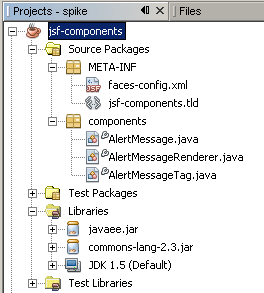
Before we continue let me briefly explain what we need:


META-INF/jsf-components.tld

Tag library descriptor declaring your tag and defining its attributes

META-INF/faces-config.xml

Declares the tag in the faces application

components/AlertMessage.java

Class representing the user interface component with properties for each attribute supported by the tag. It's recommended to sub-class one of the existing components to avoid doing all the work yourself.

components/AlertMessageRenderer.java

Class for rendering the content of the tag. This is the class where we will actual construct the HTML/Javascript code that is outputted to the browser.

components/AlertMessageTag.java

Class representing the actual tag.


Now that we know what to do - lets get on with it.

3. Create the components package in the Source Packages
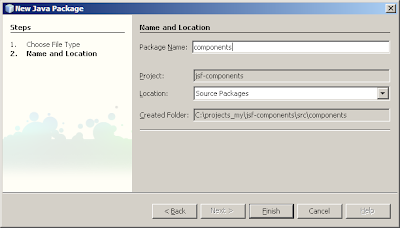

3a) Right click Source Packages
3b) Select 'New'
3c) Select 'Other'
3d) Select 'Java'
3e) Select 'Java Package'
3f) Click 'Next'
3g) Enter components as the package name
3h) Click 'Finish'

4. Create the tag library descriptor
4a) Right click Source Packages
4b) Select 'New'
4c) Select 'Other'
4d) Select 'Web'
4e) Select 'Tag Library Descriptor'
4f) Click 'Next'
4g) Enter the following information:
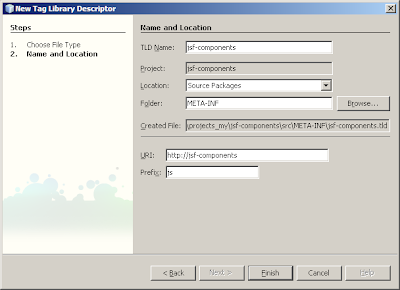

  • TLD name: jsf-components

  • URI: http://jsf-components

  • Prefix: jc


4h) Click 'Finish'

5. Add the javaee.jar from the GlassFish project (%GLASSFISH%/lib) to the library dependencies of the project.

6. Create the Java class for the UI component, AlertMessage subclassing the UIMessage component.


package components;

import javax.faces.component.UIMessage;

public class AlertMessage extends UIMessage {

private static final String MSG_COMPONENT_TYPE = "components.alertmessage";
private static final String MSG_COMPONENT_FAMILY = "javax.faces.Message";

@Override
public String getFamily() {
return MSG_COMPONENT_FAMILY;
}

@Override
public String getRendererType() {
return MSG_COMPONENT_TYPE;
}

@Override
public String getFor() {
return super.getFor();
}

@Override
public void setFor(String forParam) {
super.setFor(forParam);
}
}


7. Create the Java class for the tag, AlertMessageTag subclassing the UIComponentELTag tag.


package components;

import javax.el.ValueExpression;
import javax.faces.component.UIComponent;
import javax.faces.webapp.UIComponentELTag;
import javax.servlet.jsp.JspException;
import javax.servlet.jsp.PageContext;
import javax.servlet.jsp.tagext.Tag;

public class AlertMessageTag extends UIComponentELTag {

private ValueExpression forParam;

private static final String MSG_COMPONENT_TYPE = "components.alertmessage";

private static final String MSG_RENDERER_TYPE = "components.alertmessage";

@Override
public String getComponentType() {
return MSG_COMPONENT_TYPE;
}

@Override
public String getRendererType() {
return MSG_RENDERER_TYPE;
}

@Override
protected void setProperties(UIComponent component) {
super.setProperties(component);
AlertMessage em = (AlertMessage) component;
em.setValueExpression("for", forParam);
}

@Override
public int doEndTag() throws JspException {
return super.doEndTag();
}

@Override
public int doStartTag() throws JspException {
return super.doStartTag();
}

@Override
public void setPageContext(PageContext ctx) {
super.setPageContext(ctx);
}

@Override
public void setParent(Tag tag) {
super.setParent(tag);
}

public void setFor(ValueExpression forParam) {
this.forParam = forParam;
}
}


9. Create the Java class for rendering the tag, AlertMessageRenderer subclassing the JSF Renderer.


package components;

import java.io.IOException;
import java.util.Iterator;
import javax.faces.application.FacesMessage;
import javax.faces.component.UIComponent;
import javax.faces.context.FacesContext;
import javax.faces.context.ResponseWriter;
import javax.faces.render.Renderer;
import org.apache.commons.lang.StringEscapeUtils;

public class AlertMessageRenderer extends Renderer {

@Override
public void encodeBegin(FacesContext context, UIComponent component) throws IOException {
AlertMessage alertMessage = (AlertMessage) component;

// Locate the component for which to display messages
UIComponent forComponent = alertMessage.findComponent(alertMessage.getFor());

// If the component could not be found end processing
if (forComponent == null) {
return;
}

// Iterate through messages for the component
Iterator iter = context.getMessages(forComponent.getClientId(context));
if (iter.hasNext()) {
ResponseWriter writer = context.getResponseWriter();

// Start the script tag
writer.startElement("script", alertMessage);
writer.writeAttribute("type", "text/javascript", null);

// Construct one big string of all messages
StringBuffer message = new StringBuffer();
while (iter.hasNext()) {
FacesMessage msg = (FacesMessage) iter.next();
if (message.length() > 0) {
// Separate each message with the JavaScript escape code
// for newline
message.append("\n");
}

message.append(msg.getSummary());
}

// Escape the constructed string to be outputable as a JavaScript
String displayMessage = StringEscapeUtils.escapeJavaScript(message.toString());

// Output the javascript code for displaying the alert dialogue
String jsAlert = "alert('" + displayMessage + "');";
writer.writeText(jsAlert.toCharArray(), 0, jsAlert.length());

// End the script tag
writer.endElement("script");
}
}

@Override
public void decode(FacesContext ctx, UIComponent component) {
if (ctx == null || component == null) {
throw new NullPointerException();
}
}
}


Notice that I'm using StringEscapeUtils.escapeJavaScript(String) from the Apache Commons Lang library to ensure the correct output of the JavaScript code.

10. Update the tag library descriptor to reflect the created component:


<?xml version="1.0" encoding="UTF-8"?>
<taglib version="2.0" xmlns="http://java.sun.com/xml/ns/j2ee" xmlns:xsi="http://www.w3.org/2001/XMLSchema-instance" xsi:schemaLocation="http://java.sun.com/xml/ns/j2ee web-jsptaglibrary_2_0.xsd">
<tlib-version>1.0</tlib-version>
<short-name>jc</short-name>
<uri>http://jsf-components</uri>
<tag>
<name>AlertMessage</name>
<tag-class>components.AlertMessageTag</tag-class>
<body-content>JSP</body-content>
<attribute>
<description>
The ID of the component whose attached FacesMessage object
(if present) should be diplayed by this component.
</description>
<name>for</name>
<required>true</required>
<deferred-value/>
</attribute>
</tag>
</taglib>


11. Create the faces configuration (META-INF/faces-config.xml) for the component:

<?xml version='1.0' encoding='UTF-8'?>
<faces-config version="1.2" xmlns="http://java.sun.com/xml/ns/javaee" xmlns:xsi="http://www.w3.org/2001/XMLSchema-instance" xsi:schemaLocation="http://java.sun.com/xml/ns/javaee http://java.sun.com/xml/ns/javaee/web-facesconfig_1_2.xsd">
<component>
<component-type>components.alertmessage</component-type>
<component-class>components.AlertMessage</component-class>
</component>

<render-kit>
<renderer>
<description>Renderer for the alert message component.</description>
<component-family>javax.faces.Message</component-family>
<renderer-type>components.alertmessage</renderer-type>
<renderer-class>components.AlertMessageRenderer</renderer-class>
</renderer>
</render-kit>
</faces-config>


12. Build the class library

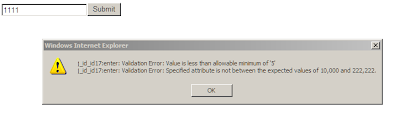
All you need to do now is to place the jsf-components.jar into your web application, declare the tag library (<%@taglib prefix="jc" uri="http://jsf-components" %>) on the pages where you want to use the tag (<jc:alertMessage for="componentId" />). Example:


<%@page contentType="text/html"%>
<%@page pageEncoding="UTF-8"%>
<%@taglib prefix="f" uri="http://java.sun.com/jsf/core"%>
<%@taglib prefix="h" uri="http://java.sun.com/jsf/html"%>
<%@taglib prefix="jc" uri="http://jsf-components" %>
<!DOCTYPE HTML PUBLIC "-//W3C//DTD HTML 4.01 Transitional//EN" "http://www.w3.org/TR/html4/loose.dtd">
<html>
<head>
<meta http-equiv="Content-Type" content="text/html; charset=UTF-8">
<title>Example of AlertMessage component</title>
</head>
<body>
<f:view>
<h:form>
<jc:AlertMessage for="numberField" />
<h:inputText id="numberField">
<f:validateLength minimum="5" maximum="10" />
<f:validateLongRange minimum="10000" maximum="222222" />
</h:inputText>
<h:commandButton value="Submit" action="reload" />
</h:form>
</f:view>
</body>
</html>


UPDATE (30. July 2008): Facelets Support

You can use the component with Facelets by providing a Facelets Tag Library descriptor. In this example I name the tag library descriptor mycomponents.taglib.xml and place in the WEB-INF/ directory.

The contents of the descriptor is:


<?xml version="1.0"?>
<!DOCTYPE facelet-taglib PUBLIC "-//Sun Microsystems, Inc.//DTD Facelet Taglib 1.0//EN" "http://java.sun.com/dtd/facelet-taglib_1_0.dtd">

<facelet-taglib>
<namespace>http://jsf-components</namespace>
<tag>
<tag-name>alertMessage</tag-name>
<component>
<component-type>components.alertmessage</component-type>
<renderer-type>components.alertmessage</renderer-type>
</component<
</tag<
</facelet-taglib<


Next you need to reference the descriptor in web.xml using the facelets.LIBRARIES context parameter:


<context-param>
<param-name>facelets.LIBRARIES</param-name>
<param-value>/WEB-INF/mycomponents.taglib.xml</param-value>
</context-param>


Remember that if you have more than one Facelets Tag Library Descriptor, to separate them using semicolons (;)

Monday, 4 February 2008

Concatenating strings in JSF

To start the day off I though I'd share a quick tip using JSF. Say you have a list of messages:

quicktip.Messages:


ITEM_1=First item
ITEM_2=Second item
ITEM_3=Third item

Now, on your JSF page you would like to show one of these messages depending on the ID of the item to display. For example, you might have an list of beans containing items you'd like to display:

quicktip.Item

package quicktip;

public class Item {

/** Unique ID of the item. */
private int id;

/** Number of items. */
private int count;

public Item() {}

...usual getters and setters...

}


So, in your backing bean to the JSF page you have a method that constructs a DataModel containing items (I won't go into those details as it's not very exciting). For the sake of this example the signature of the method is public DataModel getItems();

Finally we get to the interesting bit, the actual JSF page.

... usual jsf stuff ...
<html>
<f:loadbundle basename="quicktip.Messages" var="msgs" />
<body>
<h:datatable value="#{backingBean.items}" var="item">
<h:column>
<c:set var="key" value="ITEM_#{item.id}" />
<h:outputtext value="#{msgs[key]}" />
</h:column>
<h:column>
<h:outputtext value="#{item.count}" />
</h:column>
</h:dataTable>
</body>
</html>


That's it. So, the real gist of the tip is that you can use the jstl tag to concatenating a string that you can re-use to fetch values from maps.